

Description
The Product Availability by Date for WooCommerce feature lets you control when products are visible and available for purchase based on specific dates. It also allows you to show custom messages on the frontend so customers know when a product will be available.
This is useful for managing seasonal items, limited-time products, or repeating availability schedules.
You can set the date range in the following ways:
- Single date range: Use the format
DD-DD- Example:
1-31(available all month) or15-25(available from 15th to 25th)
- Example:
- Multiple date ranges: Use the format
DD-DD,DD-DD- Example:
1-20,26-31(available from 1st–20th and 26th–31st)
- Example:
- Unavailable all month: Use a single dash
-- Example:
-means the product is not available at all during that month.
- Example:
What Can You Do with the WooCommerce Product Availability by Date Module?
- Display custom availability messages based on the set date to inform customers when the product will be available.
- Restrict product purchases until the specified availability date is reached.
- Automatically update product status or visibility based on the availability schedule.
- Control availability settings at the product or category level for more flexibility.
- Customize how unavailable products appear in the shop and product pages (e.g., hide the “Add to Cart” button).
Getting Started with Product Availability by Date for WooCommerce
Once you have Booster for WooCommerce plugin and the Product Availability by Date module enabled for your store, getting started is hassle-free. Our user-friendly module interface keeps it all sorted for you. Still stuck? We have prepared a very detailed documentation to help our users understand how the Product Availability by Date Module works.
Product Availability by Date Plugin at Work
1. Edit All Products Options
All Products: Enable the option to show the products availabilty date.
WooCommerce Product Availability by Date module lets you set product availability by date.
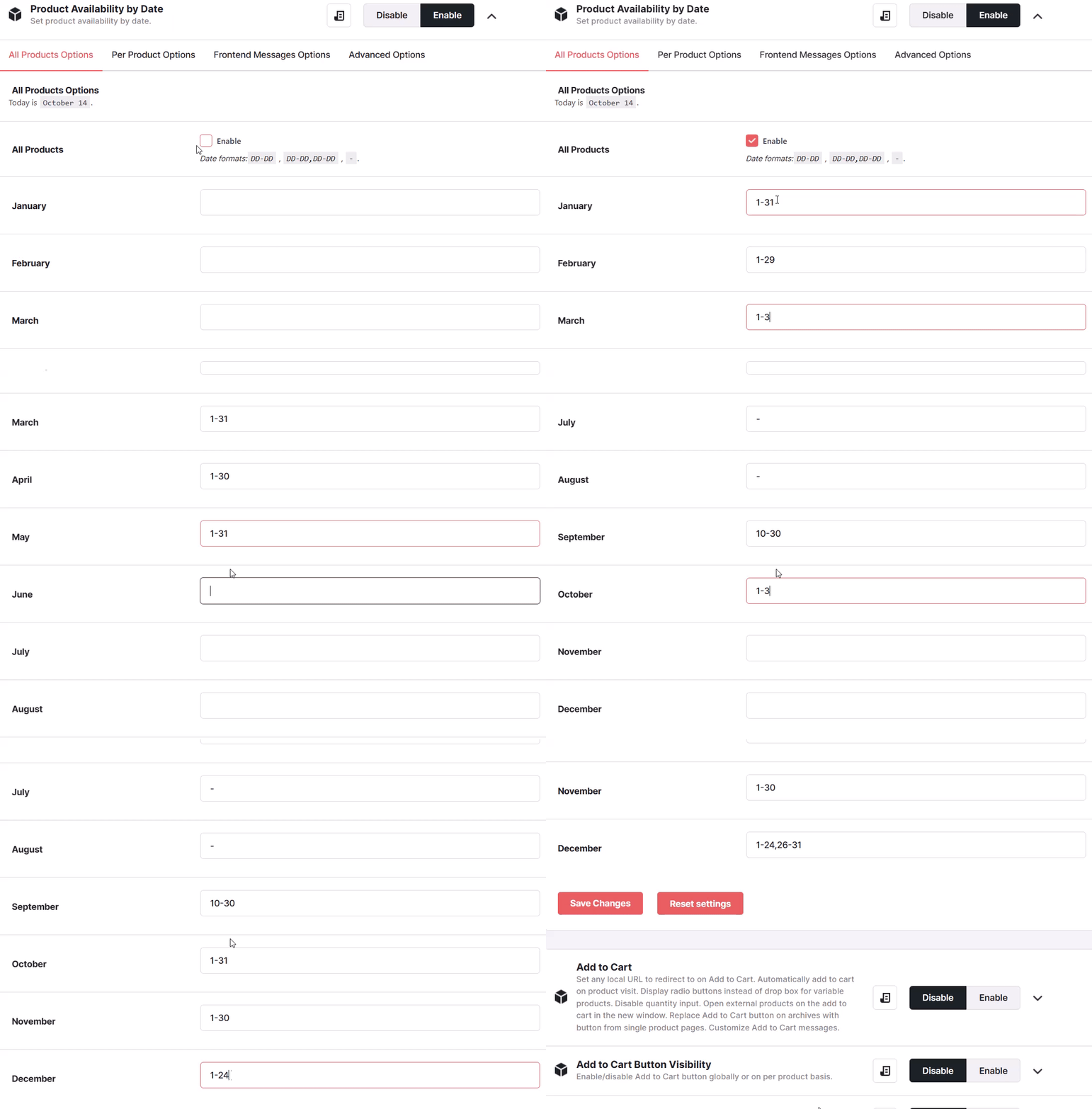
You can set dates in these formats. DD-DD, DD-DD, DD-DD, -. If you want to disable product purchase for a month then you can set “-” value instead of the date range.
2. Per Perduct Options
- Per Product: Enable this option to set a custom availability date for each individual product.
- Date Format for Admin Input: Define the date format used when setting the availability date per product from the admin panel.

Admin View:

3. Customize the Mesaage by Frontend Messages Options
Customers can customize the product availability message displayed on the frontend for date-restricted products.
- Message (Monthly): Define the message to show when a product is unavailable during a specific month.
- Message (Monthly – Month Off): Use this option to display a message indicating that products are not available during the selected month.
- Message (Direct Date): Set a custom message to be shown based on a specific availability date.
4. Advanced Options for Product Availability By Date
- Show Message on Category/Shop Page: Enable this option to display the availability message for unavailable products on the shop or category pages, including the homepage.
- Action: Choose an action from the dropdown to determine products should be purchasable or restricted.
- WooCommerce > Settings > Booster > Products > Product Availability by Date
 WooCommerce 10.7.0 and
  WordPress 6.9.4